iPhone or iPad
Open the Settings app on your iPhone or iPad (the gear icon). The pictures below show where to tap. You can tap any picture to enlarge it.
Open Apps
Scroll down in Settings and tap Apps.
On older iOS versions, find PPTControl directly in the main Settings list and skip the next step.
Visual guide: In the iPhone Settings app, scroll down and tap Apps.

In the iPhone Settings app, scroll down and tap Apps. Find PPTControl
In Apps, tap Search, type PPTControl, then tap the PPTControl result. You can also scroll through the alphabetical app list.
Visual guide: Search the Apps list for PPTControl, then tap its result.

Search the Apps list for PPTControl, then tap its result. Turn on the access you need
Tap a switch if it is off. Green means access is allowed; leave an already-green switch as it is.
- Camera: turn this on to scan the desktop QR code inside PPTControl.
- Bluetooth: turn this on to find and connect to the computer in the device list.
- Local Network: turn this on to connect over Wi-Fi or a hotspot and load slide images.
Visual guide: The marked switches allow Bluetooth, Local Network, and Camera. Green means access is already allowed.

The marked switches allow Bluetooth, Local Network, and Camera. Green means access is already allowed.
Option missing? Return to PPTControl and try the action once: open the QR scanner for Camera, look for a computer for Bluetooth, or connect over Wi-Fi for Local Network. Allow access when asked, then check Settings again. Local Network is also under Settings → Privacy & Security → Local Network.
Android phone or tablet
Open your phone’s Settings app (the gear icon). Follow the steps to find PPTControl, then allow the permissions for the features you use. Labels can vary by phone and Android version.
Shortcut: You can also hold the PPTControl app icon, tap App info (or the ⓘ icon), then continue at Open Permissions below.
Open Apps
In your phone’s Settings, scroll to Apps and tap it.
Visual guide: In Android’s Settings app, tap Apps.

In Android’s Settings app, tap Apps. Show the full app list
Tap All apps. Your phone may call this See all apps or show the number of installed apps.
If PPTControl is already listed, you can tap it directly.
Visual guide: Tap All apps to show the installed apps.
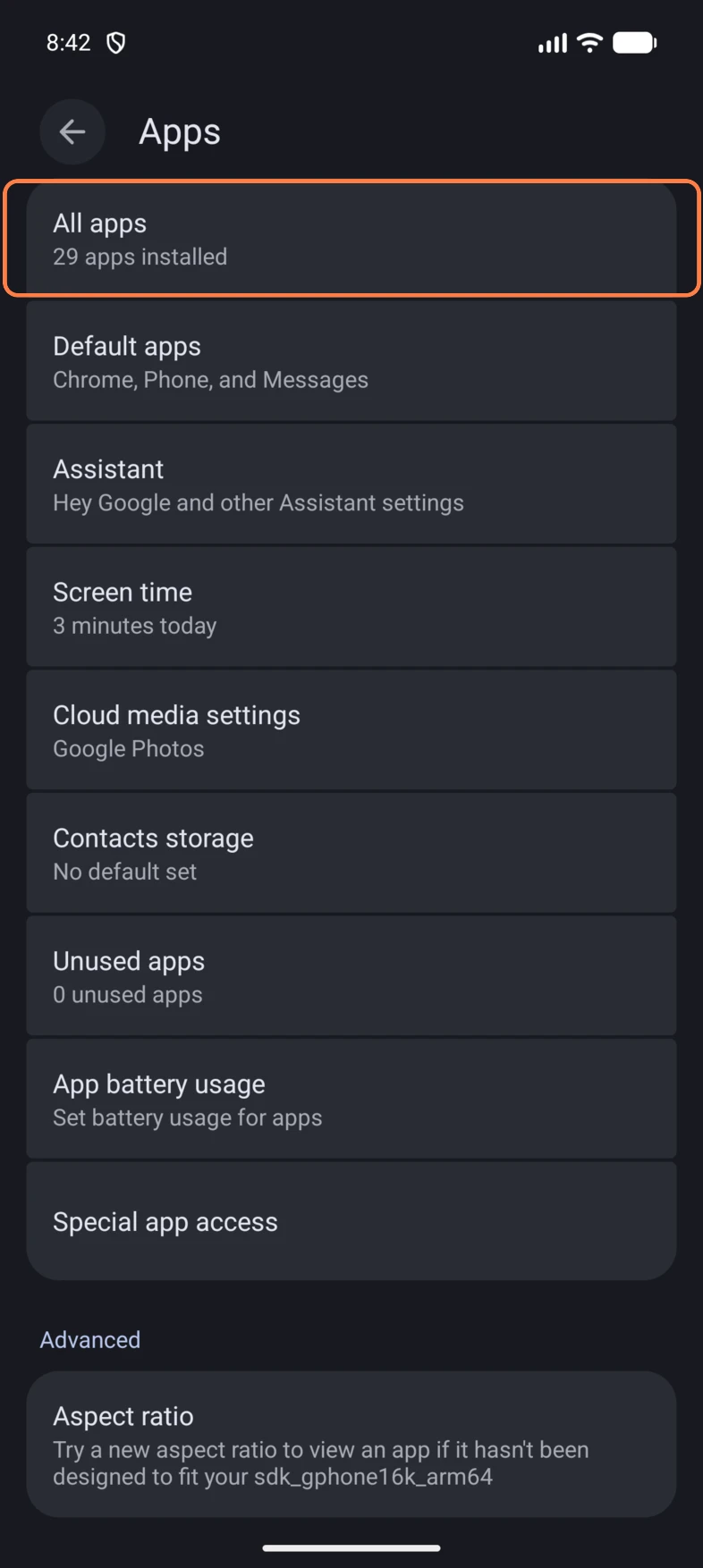
Tap All apps to show the installed apps. Open PPTControl’s app settings
Scroll down the alphabetical list and tap PPTControl. If there is a search button at the top, you can use it to find the app.
Visual guide: Scroll through All apps and tap PPTControl.

Scroll through All apps and tap PPTControl. Open Permissions
On the App info page for PPTControl, tap Permissions.
Visual guide: On PPTControl’s App info page, tap Permissions.

On PPTControl’s App info page, tap Permissions. Find the permission you want to change
Look for Camera or Nearby devices. A permission can be under Allowed or Not allowed; tap its name in either place.
The pictures below show the options to choose. You only need the permissions for the features you use.
Visual guide: Tap Camera for the scanner or Nearby devices for connections. Either entry can appear under Allowed or Not allowed.

Tap Camera for the scanner or Nearby devices for connections. Either entry can appear under Allowed or Not allowed. Allow Camera for the QR scanner
Tap Camera, then select Allow only while using the app. The filled circle shows the selected option.
Use the back arrow at the top-left to return to PPTControl’s permission list.
Visual guide: For Camera, select Allow only while using the app. The filled circle shows the selected option.

For Camera, select Allow only while using the app. The filled circle shows the selected option. Allow Nearby devices for connections
In the permission list, tap Nearby devices, then select Allow. This is used for Bluetooth on Android 12 or later and for local-network access when your Android version requests it.
If Allow is already selected, leave it as it is.
Visual guide: For Nearby devices, select Allow. The filled circle shows the selected option.

For Nearby devices, select Allow. The filled circle shows the selected option.
- Location: for Bluetooth discovery on Android 11 or earlier, return to the permission list, tap Location and allow access while using the app. Also turn the phone’s Location setting on. Google: why Bluetooth needs Location permission →
- Local network: allow access if Android requests it for Wi-Fi or hotspot connections. On newer Android versions, this belongs to Nearby devices, as in the pictures above. A separate Local network entry may not appear.
Option missing? Try the relevant action once in PPTControl, then check the permission list again. Older Android versions may show Location instead of Nearby devices.
Why Location for Bluetooth? On Android 11 or earlier, Android requires this permission because Bluetooth scan results could reveal where you are. PPTControl uses the scan to find your computer and does not collect your location.
Return to PPTControl
Scan the QR code or select the computer again.
- Camera still unavailable? Try your phone’s normal Camera app, then tap Open PPTControl on the pairing page.
- Setting locked? Ask whoever manages the device or its parental controls.
Still stuck? Contact support