1. Connect the paired iPhone
- Install PPTControl on the iPhone paired with your Apple Watch.
- Connect that iPhone to your presentation computer.
- Start the slideshow and confirm that a phone slide button works.
The watch uses your iPhone’s connection. It does not connect directly to the computer or work through Android.
2. Open PPTControl on the watch
App missing? Open the Watch app on your iPhone, find PPTControl under available apps, and choose Install. Check the App Store listing for supported watchOS versions.
- Open PPTControl on the phone and watch. Keep them nearby and use Previous and Next to change slides.
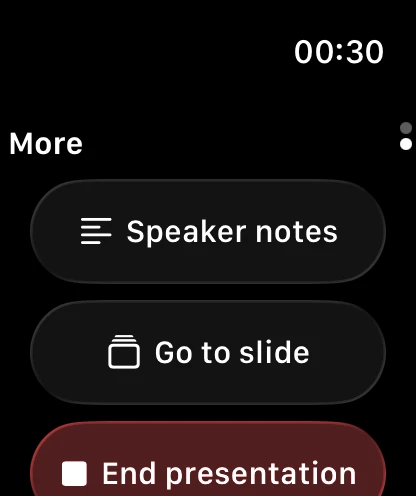
- Swipe up to reach More. On watchOS 9, swipe left instead.
- Choose Speaker notes or Go to slide with Pro on your iPhone. Browse the slides, then tap a slide to show it on the computer.
Notes require PowerPoint or Keynote. Slide images also need the phone and computer on the same local network. Scrolling through previews does not change the audience’s slide until you tap one.

3. If controls stop working
- Wake the watch and open PPTControl again.
- Try a slide button on the iPhone. If it fails too, check the phone’s connection.
- Keep the devices nearby and update both apps if needed.
Double tap: works on supported Apple Watch models and watchOS versions while the relevant control screen is active. Keep the app open; do not rely on controls with the screen off.
Still stuck? Contact support