1. Check the requirements
- PPTControl Pro on your phone or tablet. How to unlock Pro →
- PowerPoint desktop on Windows/Mac or Keynote on Mac. Check presentation-app requirements →
- A shared local network: Wi-Fi or your phone’s hotspot. Ethernet on that network also works for the computer.
Bluetooth alone cannot send slide images. Google Slides and PowerPoint for the web previews are not supported.
2. Open the slide browser
- Start the slideshow. For Keynote, start it from PPTControl so thumbnails can load.
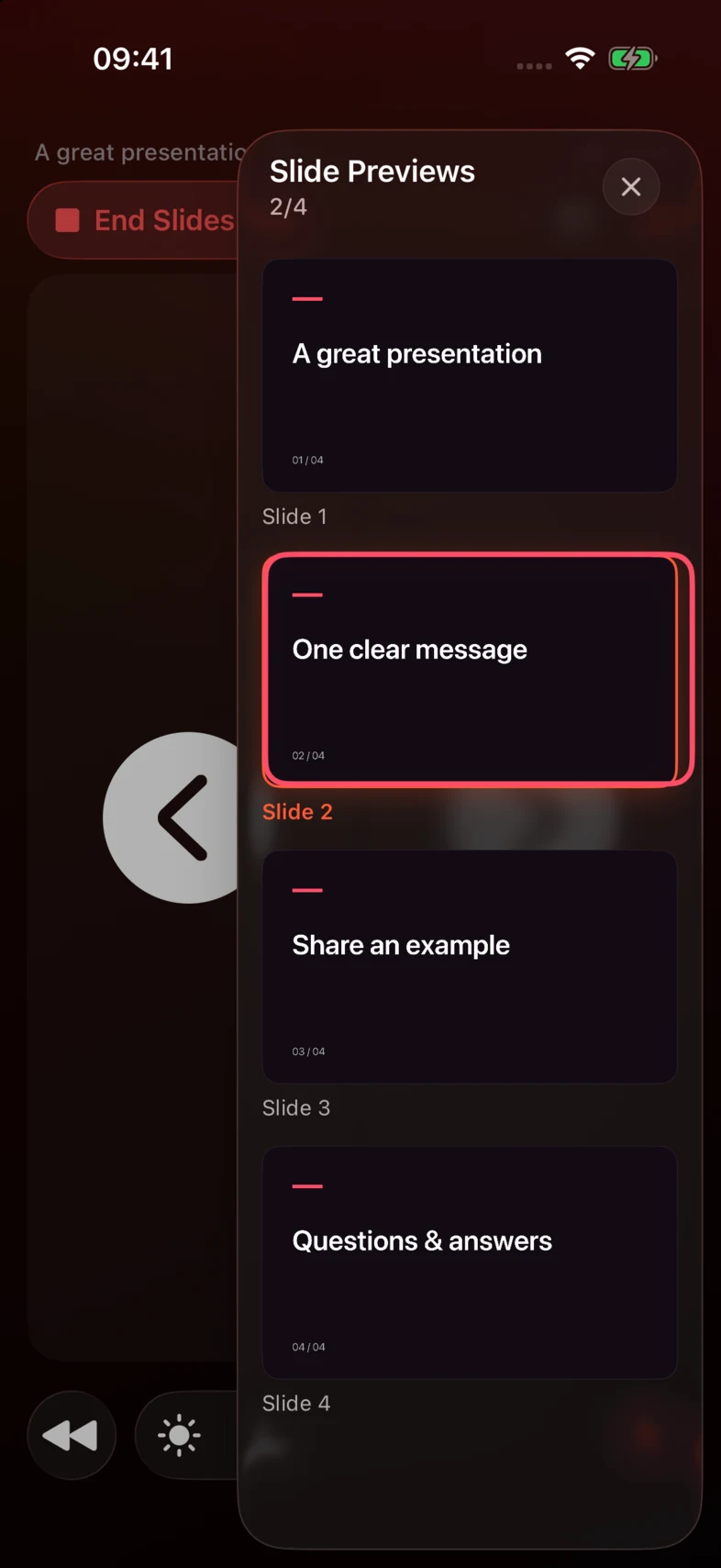
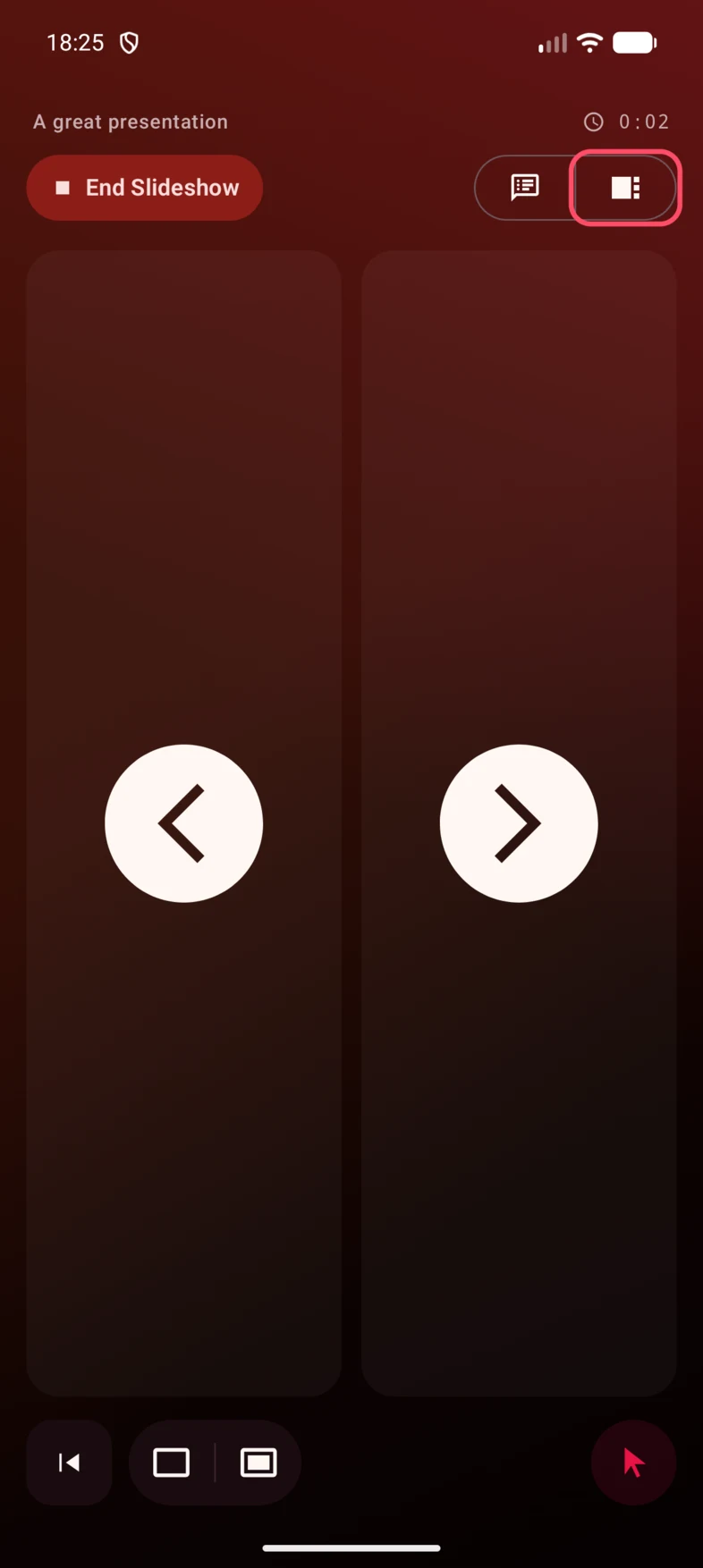
- Tap the sidebar button at the top-right.
- Scroll the thumbnails and tap a slide to show it on the computer.
Keynote asks to restart? Choose Restart from PPTControl before your talk: this restarts the slideshow.
The computer prepares images locally. A large deck can take longer the first time.
Browse and select slides
iPhone / iPad visual guide

Android visual guide

3. If previews stay empty
- Check Pro and the selected app: choose PowerPoint or Keynote in PPTControl Desktop. Pro still locked? →
- Check the network: put both devices on the same local network, then reconnect. Wi-Fi / QR help → · Hotspot help →
- Mac + PowerPoint: look for the SlidesData access prompt, including behind other windows. Grant PowerPoint file access →
- Sidebar button missing? The sidebar is available in both layouts. Check that a slideshow is detected →
If slide buttons work but images never load, tell support that distinction.
Still stuck? Contact support