1. Allow control of your Mac
This permission lets PPTControl Desktop send keyboard and mouse input to your presentation.
Open Privacy & Security
On your Mac, open the Apple menu → System Settings. In the sidebar, choose Privacy & Security. Scroll the sidebar if you do not see it.

Choose Privacy & Security in the System Settings sidebar. Open the control permission
Scroll the list on the right and choose Device Control and Data Access on macOS 27. On earlier macOS versions, choose Accessibility.
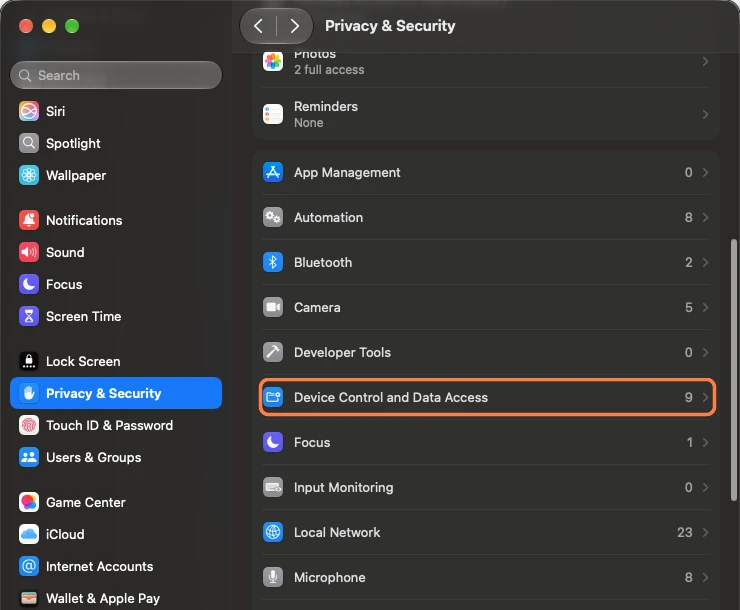
In Privacy & Security, open Device Control and Data Access (macOS 27). Enable PPTControl Desktop
Turn on PPTControl Desktop. Authenticate if macOS asks.
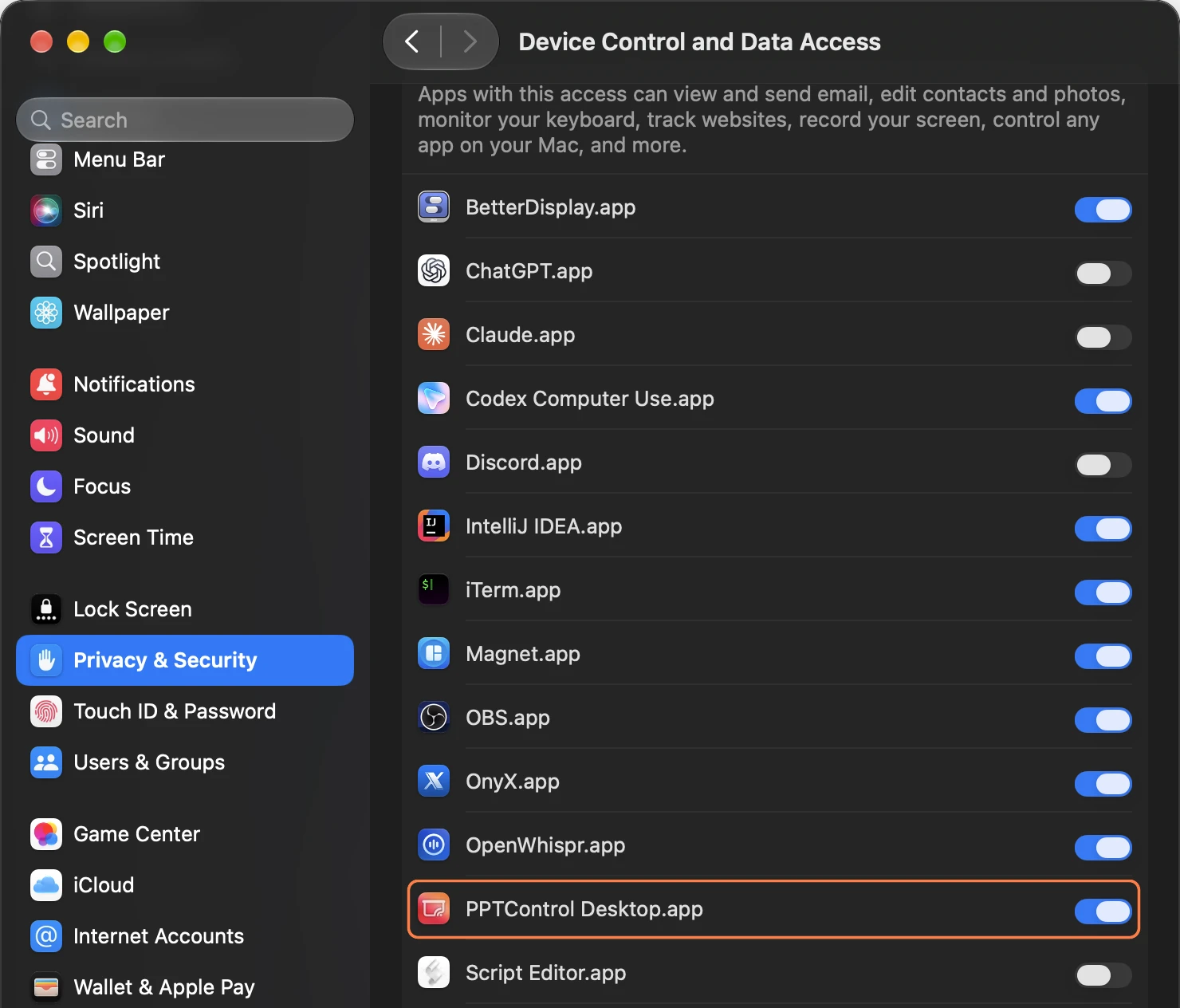
Turn on PPTControl Desktop. The blue switch shows that access is allowed (macOS 27).
App missing? Click +, select PPTControl Desktop from Applications, then click Open.
If prompted, choose Quit & Reopen; otherwise quit and reopen PPTControl Desktop yourself.
2. Allow Bluetooth access
Follow these steps when connecting over Bluetooth. Select your computer inside PPTControl after allowing access.
For Wi-Fi or a hotspot, continue to presentation-app permissions →
Open Bluetooth permissions
Return to Privacy & Security in System Settings. Scroll the list on the right and choose Bluetooth.
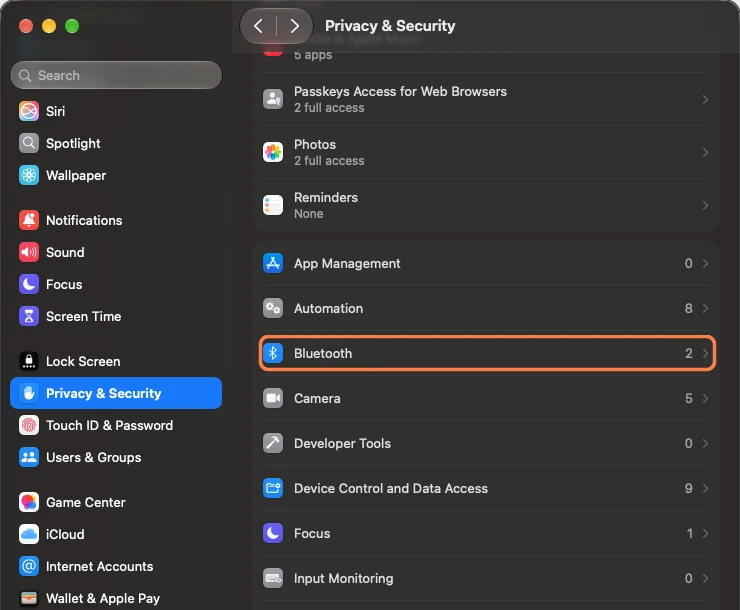
Scroll the Privacy & Security list and open Bluetooth. Allow PPTControl Desktop to use Bluetooth
Turn on PPTControl Desktop in the Bluetooth app list.

For a Bluetooth connection, turn on PPTControl Desktop under Privacy & Security → Bluetooth.
3. Choose your presentation app and allow Automation
In PPTControl Desktop, select PowerPoint or Keynote as the Presenter App. Follow its setup to allow control of that application.
Open the macOS permission prompt
In Allow presentation control, click Continue to macOS Prompt.

In Allow presentation control, click Continue to macOS Prompt at the bottom-right. Allow presentation control
In the macOS prompt, click Allow so PPTControl Desktop can control your presentation app. The screenshot shows Microsoft PowerPoint.
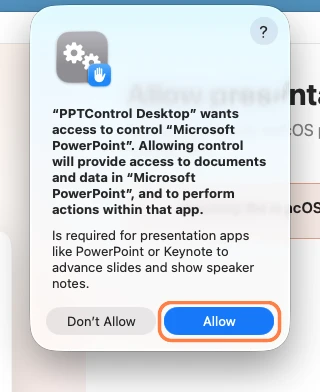
In the macOS permission prompt, click Allow.
After clicking Allow, continue to the next step →.
Google Slides does not use the PowerPoint/Keynote Automation permission.
Access not granted during setup?
Only use these steps if you clicked Don’t Allow or access to your presentation app is still disabled.
Open Automation
Open System Settings → Privacy & Security. Scroll the list on the right and choose Automation.
Visual guide: In Privacy & Security, open Automation.

In Privacy & Security, open Automation. Allow your presentation app
Click the arrow beside PPTControl Desktop to expand it. Turn on Microsoft PowerPoint, or Keynote if that is the app you use. The screenshot shows PowerPoint enabled.
Visual guide: Expand PPTControl Desktop and turn on Microsoft PowerPoint. The blue switch shows that access is allowed.
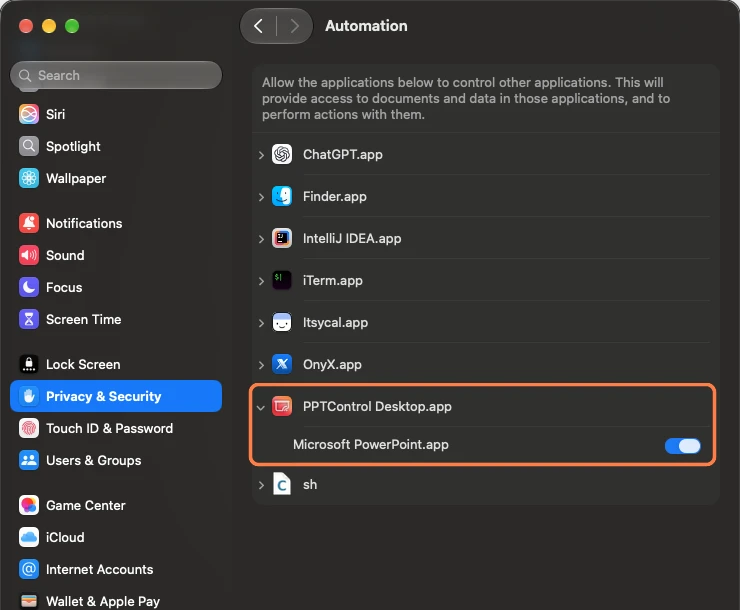
Expand PPTControl Desktop and turn on Microsoft PowerPoint. The blue switch shows that access is allowed.
Entry missing? Open your presentation app and try controlling it from PPTControl again to trigger the permission request.
4. Prepare PowerPoint slide previews
This lets PowerPoint prepare preview images locally. Already allowed access? Continue to the next step. Keynote and Google Slides skip this preparation.
Start preparing previews
In the desktop setup, open Prepare PowerPoint slide previews and click Prepare Now.

Click Prepare Now at the bottom-right of the PowerPoint preview setup. Open PowerPoint’s folder picker
Click Select… if PowerPoint asks for file access.
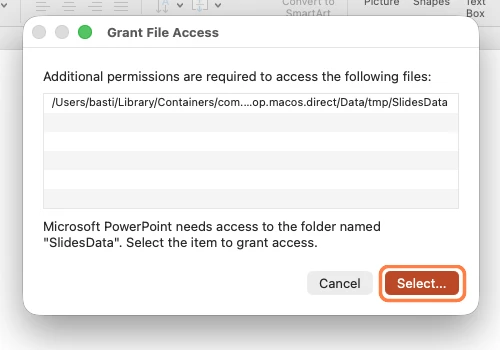
Click Select… when PowerPoint asks for file access. Grant access to SlidesData
Keep SlidesData selected and click Grant Access.
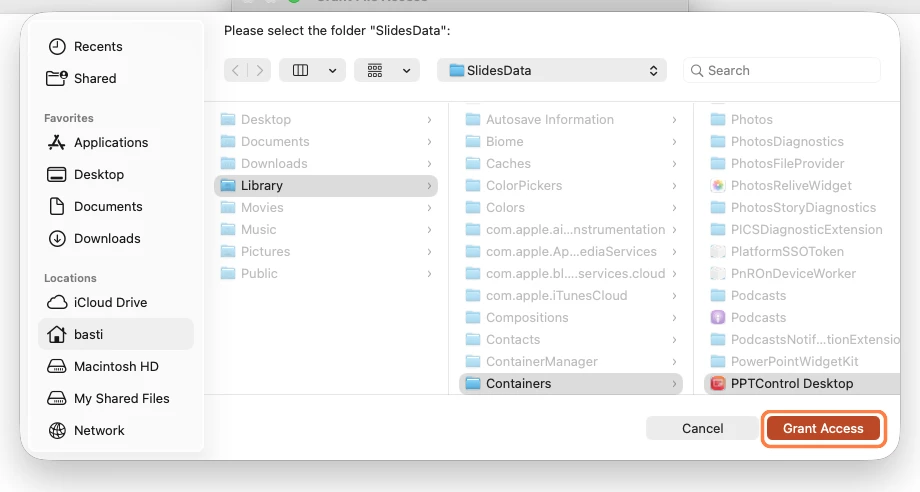
Keep SlidesData selected at the top, then click Grant Access at the bottom-right.
Prompt missing? Check behind other windows when PPTControl is waiting for previews. If you skipped preparation, grant access when PowerPoint asks during a presentation.
5. Test your connection
Open your slideshow again and test a slide change.
For Wi-Fi or a hotspot, allow Local Network on your phone or tablet if asked. Check phone permissions →
The current Mac QR connection normally does not need a separate Local Network permission. If macOS asks for it, allow access. To change a previous decision on macOS 15 or later, open System Settings → Privacy & Security → Local Network. If PPTControl Desktop is not listed, you can continue.
Buttons still do nothing? · Only previews are missing?
Apple’s instructions: Accessibility access · Automation · Local Network.
Still stuck? Contact support