Your notes, always at hand
Keep your speaker notes in view.
PPTControl automatically reads the speaker notes from PowerPoint and Keynote presentations.
Your key points stay with you without appearing to your audience.
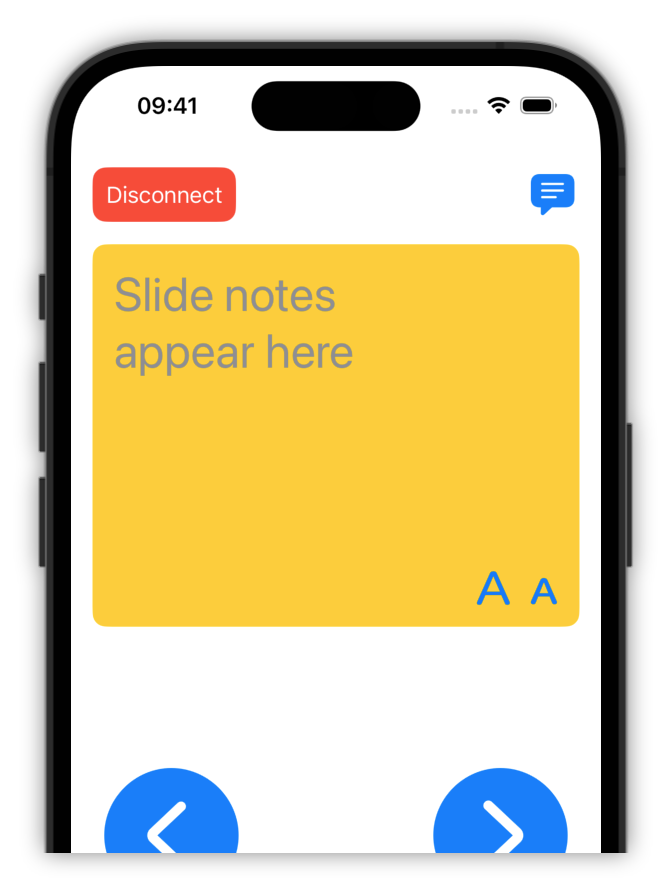
Control your presentations conveniently and easily with your smartphone, tablet or smartwatch.

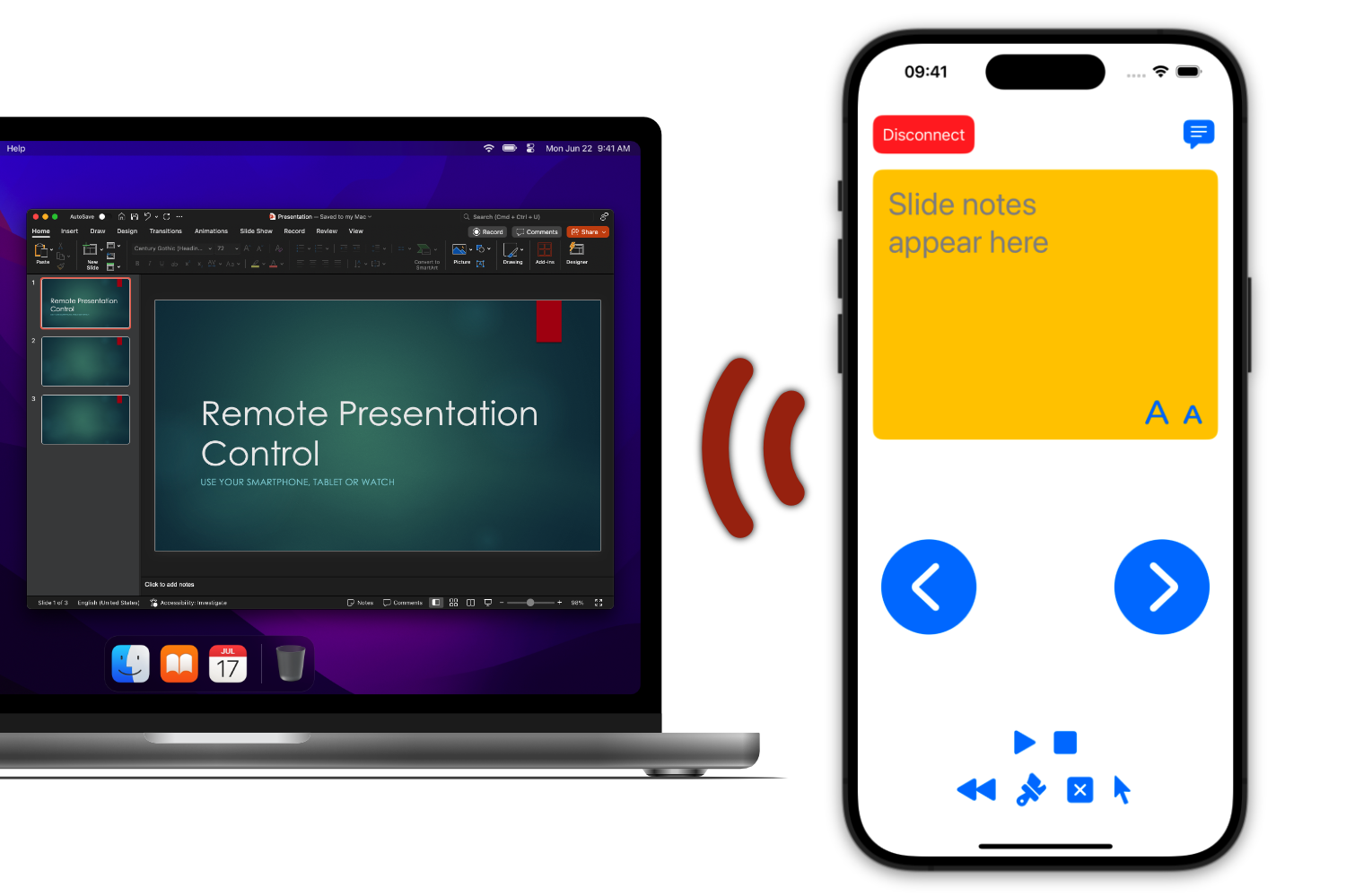
Your notes, always at hand
PPTControl automatically reads the speaker notes from PowerPoint and Keynote presentations.
Your key points stay with you without appearing to your audience.
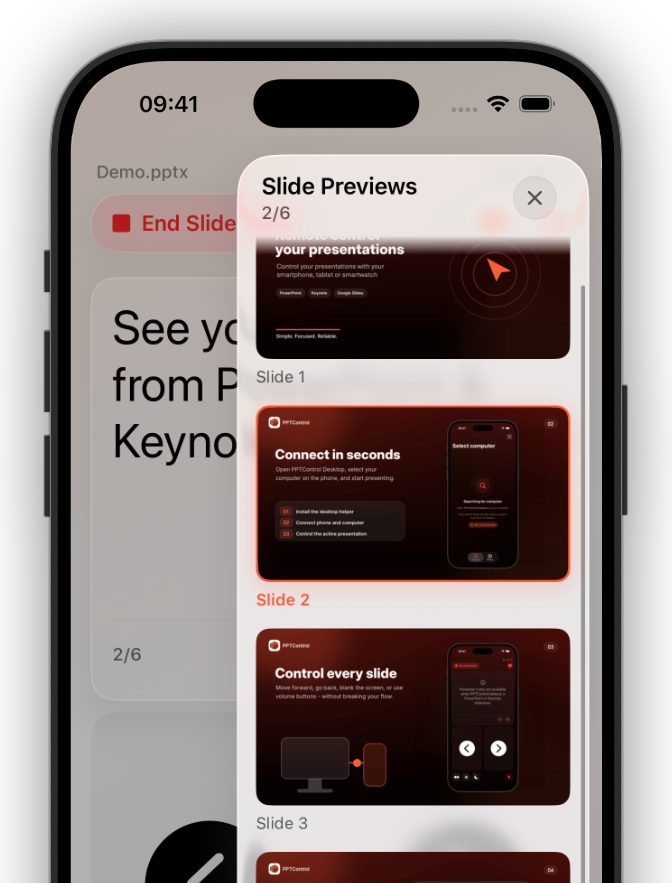
Every slide at a glance
See your slides while presenting and jump directly to any point with a tap.
No backtracking and no searching on your computer.
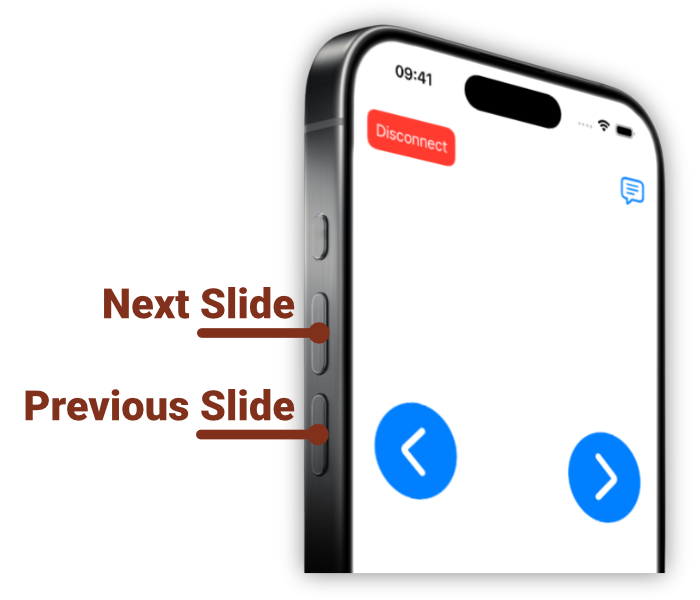
Stay focused on your audience
Use your phone’s physical volume buttons to move to the next or previous slide.
Keep your eyes on the audience and turn your phone into a presentation clicker.
Point out what matters
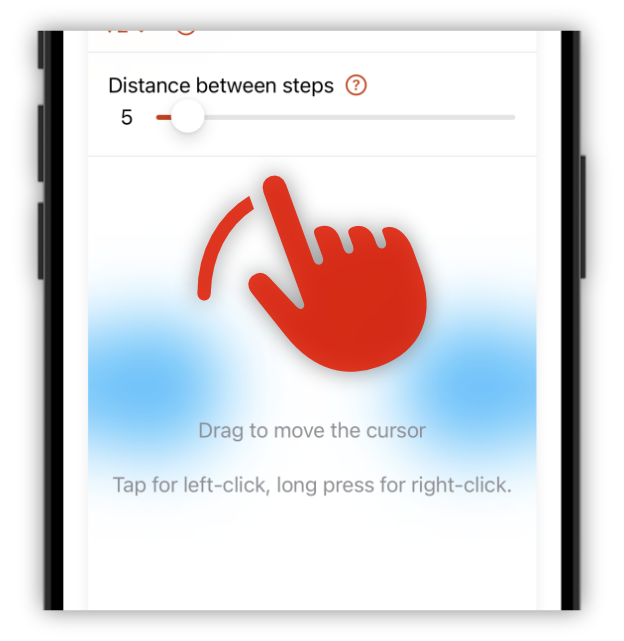
Control the cursor on your Windows PC or Mac precisely from your phone.
Use the laser pointer to highlight important content in PowerPoint, Keynote, or Google Slides.
Right from your wrist
Use Apple Watch with your iPhone, or Wear OS with your Android phone.
Keep your phone connected to PPTControl Desktop while presenting.


Works perfectly.
Have been using this app to control my training PowerPoints. I like that you can also read notes on your phone. You won’t be disappointed.
Once I figure out I needed the desktop app, it all worked great. Simple, easy reliable.
New to PPTControl? Start with the setup guide, or find a quick answer below.
PPTControl Desktop runs in the Mac menu bar or the Windows system tray near the clock. Click its icon to open the menu. On Windows, check the small up-arrow if the icon is hidden.
Make sure PPTControl Desktop is installed and running. For the simplest connection, put both devices on the same Wi-Fi network, choose Show Pairing QR Code in the desktop menu, and scan it inside PPTControl on your phone. You don’t have to wait for the computer to appear in the device list.
Bluetooth is also available: connect inside PPTControl, rather than in the system Bluetooth settings.
Check your computer for a pairing request and approve your phone. If no request appears, enable Allow New Pairing Requests in the PPTControl Desktop menu. For Wi-Fi connections, check that both devices share the same local network and that local-network access is allowed.
Select the matching presentation app in PPTControl Desktop, start the slideshow on your computer, and click the slideshow window once. On Mac, also allow Accessibility and the matching Automation permission for PPTControl Desktop.
Use PPTControl Pro with PowerPoint desktop or Keynote, and connect over Wi-Fi or a phone hotspot. Open slide previews in the mobile app during your slideshow; for Keynote, start the slideshow from PPTControl. Bluetooth alone cannot transfer slide images, and Google Slides previews are not supported.
Use the same App Store or Google Play account that bought Pro. Connect to the internet, then open Settings → PPTControl Pro → Restore Purchases in the mobile app. This also works on a new phone using the same store; purchases do not transfer between the App Store and Google Play.
Download PPTControl and take control of your next presentation.